 |
|
| Capital Shipment | |
| Browse through the navigation panel for the information you are interested in. | ||||||
 |
|
|
|
|||
|
|
|
||||

Important: Please complete the Call Ahead process 2 weeks in advance for Air/Truck shipment and 6 weeks in advance for Ocean shipment.
| Step | Action |
| 1 |
Go to PO#, insert the Purchase Order number and click Get Data.

|
| 2 |
Select the Deliveries from the drop down list to view Open orders. Select the order you need.

|
| 3 |
Select the Shipping Conditions from the drop down list and choose Capital.

Note: Shipping Condition will default if single condition is shared by all lines on the Purchase Order. |
| 4 |
Validate Ship From Location.
 to choose from stored addresses. to choose from stored addresses. |
| 5 |
Select Ship Date.
|
| 6 |
Choose the PO lines you want to ship. You can also type in the serial number in the first column if you are shipping a major tool.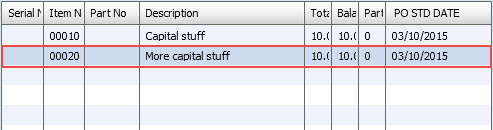
|
| 7 |
Pack your items by selecting the following options: Note: The Ship Date must be no earlier than 2 days before Purchase Order Ship To Date. |
| 7a |
If you select Pack All, click Pack All.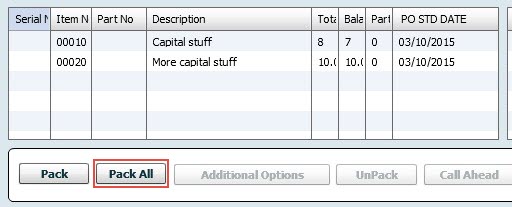
|
| 7b |
If you select Auto Pack, please follow these steps:
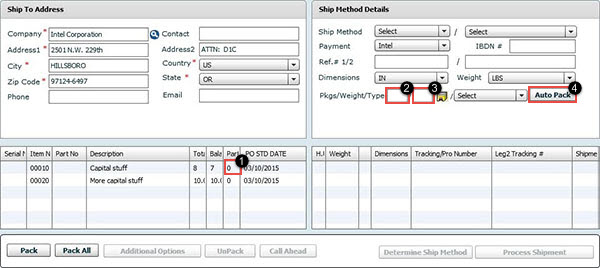
|
| 7c |
If you select Pack, enter the quantity you want to pack in the partial quantity column and click Pack.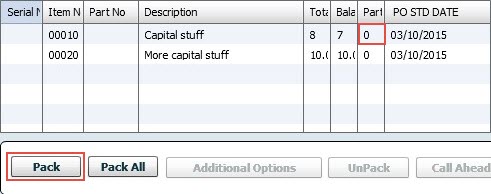
|
| 8 |
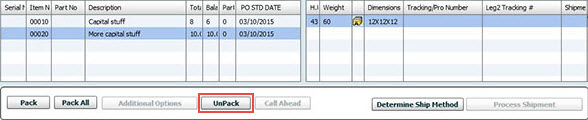
If you want to unpack any open shipment, click on Unpack to unpack all the items in the delivery.
|
| 9 |
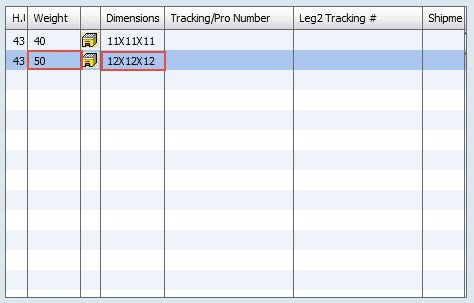
Input the dimensions and weights for each box.
|
| 10 |
Select and complete Call Ahead requirements.

|
| 10a |
Call Ahead special requirements.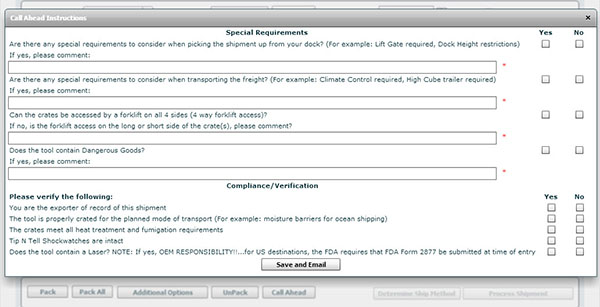
Note: Please read through these instructions, so you can ensure you have answered all questions correctly. |
| Important: You have now completed the Call Ahead process. At point of shipment execution, please return to xCarrier and pull up the xdoc (steps #1-3) and follow the instructions below to complete processing your shipment. |
| Step | Action |
| 1 |
Go to PO#, insert the valid Purchase Order number and click Get Data.
|
| 2 |
Select the Shipping Conditions from the drop down list.
|
| 3 |
Go to Deliveries, select the xDoc from the drop down list.
|
| 4 |
If you are shipping a major tool, go to the serial number column and type in the serial number for the tool.

|
| 5 |
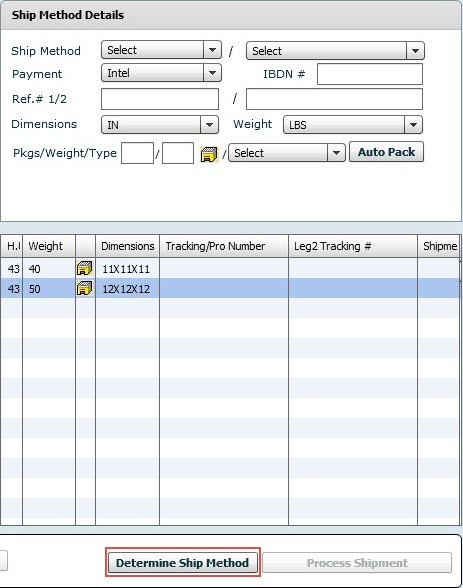
Click Determine Ship Method and verify carrier.
|
| 6 |
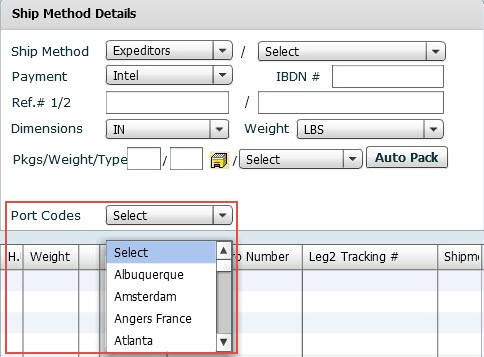
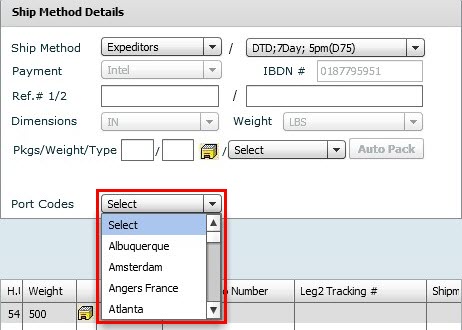
If Expeditors or NNR Global Logist is selected as the carrier, you have to select the Ship From City from the Port Codes drop down.
|
| 7 |
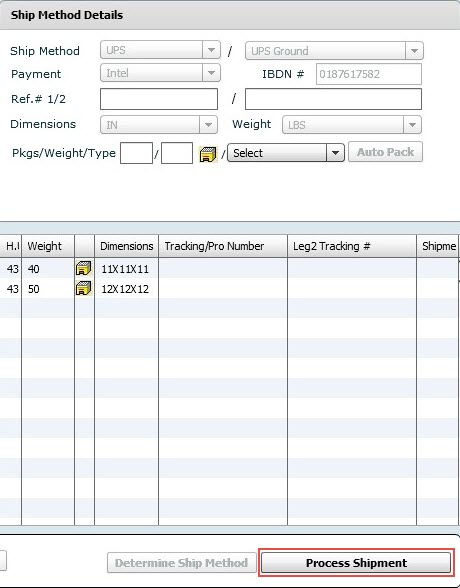
Click Process Shipment.
|
| 8 |
If after clicking on Process Shipment an error message displays requesting AES number, then click OK.
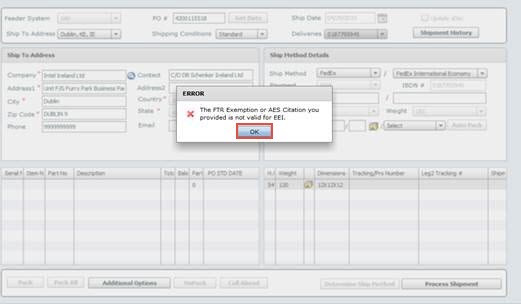
Note: AES number are required with International Shipment outbound from the US with a value of $2500. |
| 9 |
Please follow your company standard process for getting an AES number and continue to next step.
|
| 10 |
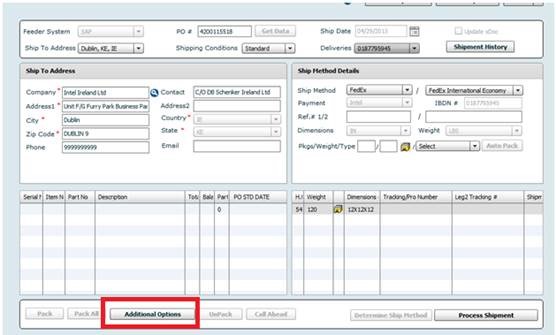
Click Additional Options.
|
| 11 |
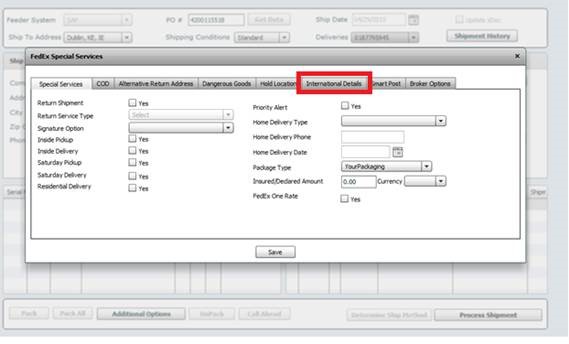
A Special Services pop-up window will be displayed, click on International Details tab.
|
| 12 |
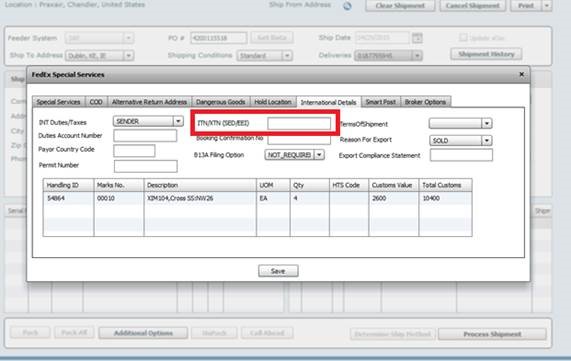
Go to ITN/XTN (SED/EEI) field, enter the AES number.
|
| 13 |
If Ship Method is Expeditors or NNR the Port Code city from the Ship From location must be selected from the drop down list.
|
| 14 |
If Direct Print is set up, documents will print automatically. If you want to manually print any documents, use the Print drop down. 
|
| Step | Action |
| 1 |
Click on Shipment History.

Result: Search returns list of Shipments with a filter default of Status "Shipped" and Ship Date of current date. |
| 2 |
The Ship Date filter will display the shipment processed on set date plus shipment after the set date.
Other filter options: Shipment Method allow filter by Carrier. PO number filter will return all shipment associated to PO regardless of other filter entries. 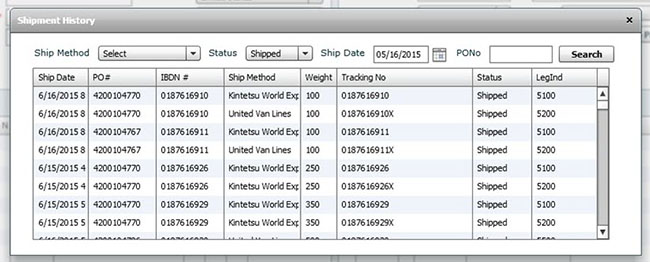
|
| Step | Action |
| 1 |
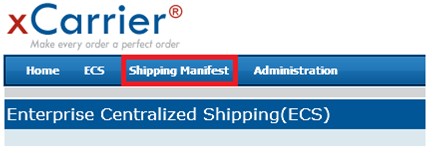
Go to xCarrier home screen and click Shipping Manifest.
|
| 2 |
Multiple filter options are available, Shipment Location defaults supplier. Manifest will display all locations for the single supplier, no location/ship from address filter. Export to Excel option is available too.
Note: The column can be drag to order output in columns to user's preference. 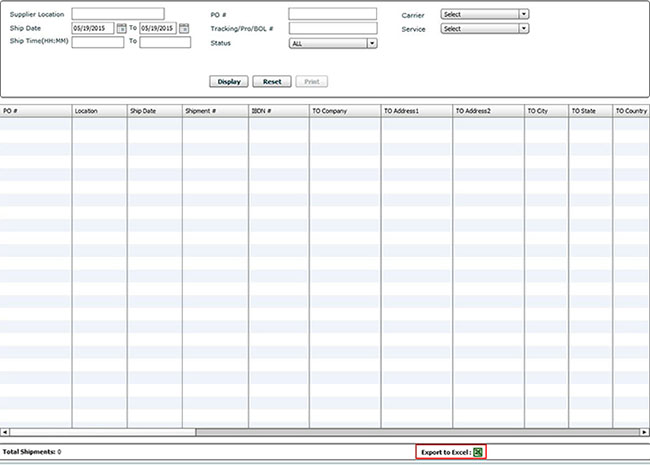
|