 |
|
| Printer Setup | |
| Browse through the navigation panel for the information you are interested in. | ||||||

|
|
|
|
|||

|
|

|
||||

When all steps outline below are complete, Reboot your PC.
| Step | Action |
| 1 |
Obtain xCarrier_PrintServer.zip file by clicking on the Launch Printer Setup.
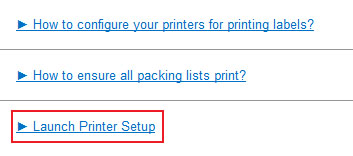
|
| 2 |
Unzip xCarrier_PrintServer.zip file.
|
| 3 |
Navigate to xCarrier_PrintServer folder where the unzipped files are located.
|
| 4 |
Double click on xCarrier_PrintServer.msi.
|
| 5 |
Click on Yes.
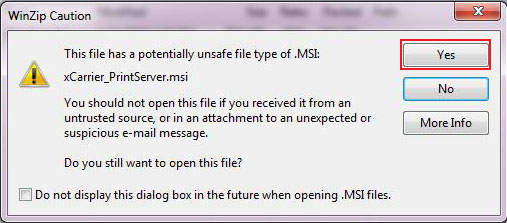
|
| 6 |
Click Next.
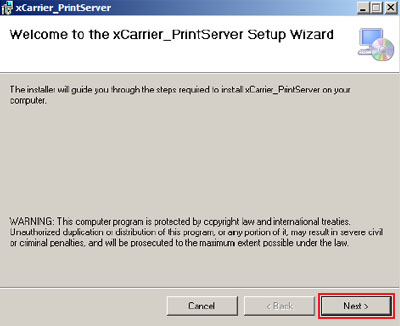
Note: If there is a previous version of this application installed, it will be automatically uninstalled while this latest version is being installed. |
| 7 |
Select Everyone or Just me radio button per your preference and click Next.
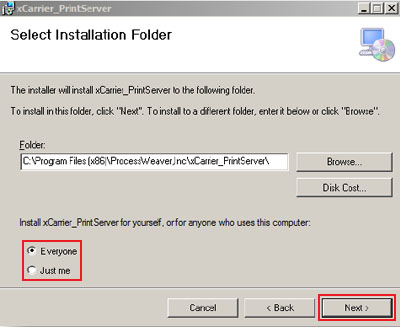
|
| 8 |
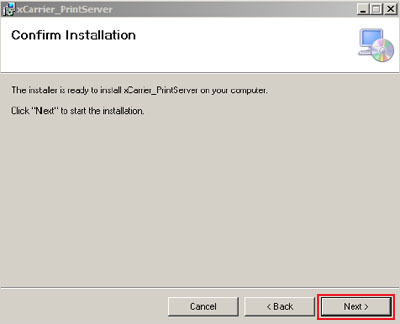
Click Next to confirm installation.
|
| 9 |
Click Close to complete the installation.
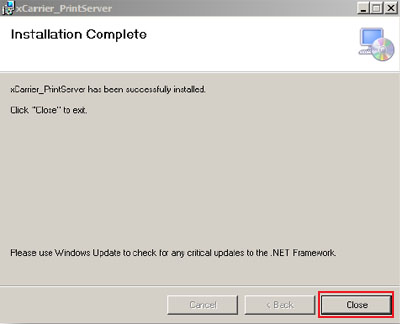
Note: After successful installation, xCarrier_PrintServer will run in the taskbar. |
| 10 |
Login to xCarrier and on the menu bar navigate to Administration.
Then click xCarrier > ECS > Configuration > Printers. Click Save button to setup automatic printing for Labels, ASN Labels and Packing Slip. 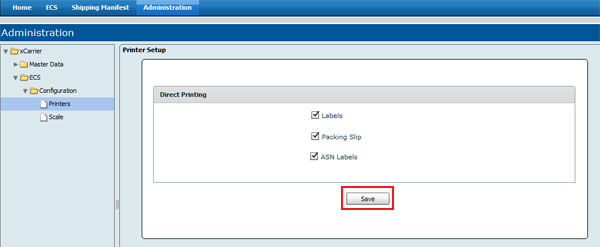
Note: Make sure all of above checkboxes selected before click the Save button. In case, you intend not to auto print some of the above documents make sure you uncheck before click the Save button. |
| 11 |
Browser Settings for Internet Explorer
(Not required for Google Chrome and Mozilla Firefox) Go to Internet Explorer. Then on the menu bar, go to Tools > Internet Options. 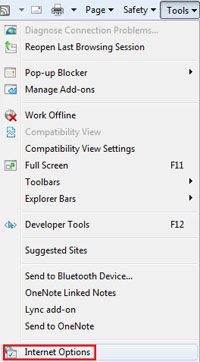
|
| 12 |
On the Internet Options window, select General tab and click on Settings button.
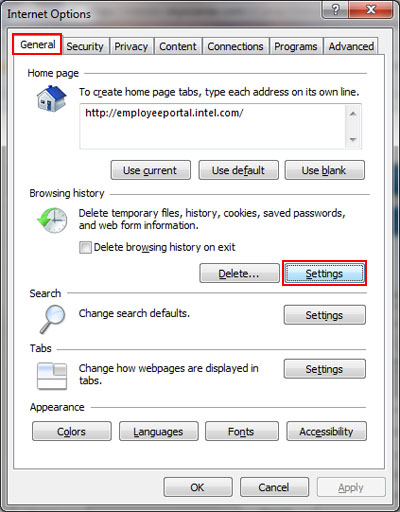
|
| 13 |
On the Website Data Settings button, select Every time I visit the webpage radio button and then clickOK button.
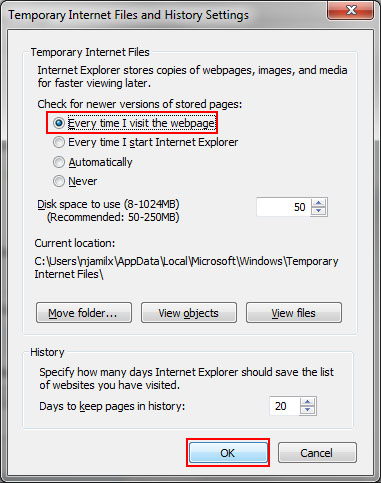
|
| 14 |
Right click on ProcessWeaver Icon in the taskbar at the bottom right.
Then click on Printer Configuration. 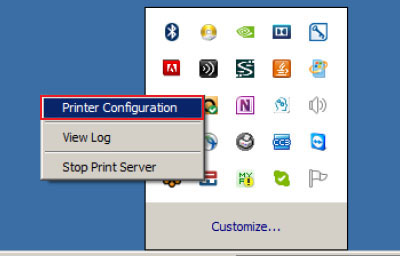
|
| 15 |
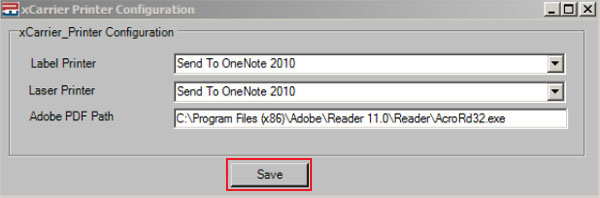
xCarrier Printer Configuration window opens and all the printers attached to the client system are populated in the Label Printer and Report Printer fields.
|
| 16 |
Select the appropriate printer to print 4 X 6 labels as the Label Printer.
|
| 17 |
Select the appropriate printer to print other document as the Laser Printer.
|
| 18 |
Adobe PDF Path will be automatically populated.
|
| 19 |
Click Save.
|
| 20 |
Reboot your PC once the printer setup completed.
|
Missing packing lists Fix
- If the packing lists are not printing, the likely cause is that the adobe program is not open long enough to complete the printing of all the packing lists.
- To increase the amount of time the adobe program is open, adjust the value in the PDFwaittime.txt file by following the steps below.
| Step | Action |
| 1 |
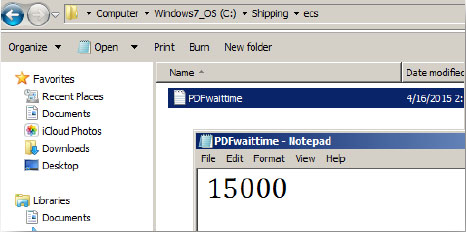
Navigate to C:\Shipping\ecs.
|
| 2 |
Locate and open PDFwaittime file.
|
| 3 |
Specify the wait time in miliseconds (Ex: 15000 for 15 seconds).
|
| 4 |
Save the PDFwaittime file with the updated wait time.
|