 |
|
| Update Shipment | |
| Browse through the navigation panel for the information you are interested in. | ||||||
 |
|
|
|
|||
|
|
|
||||

| Step | Action |
| 1 |
Go to PO#, insert the valid Purchase Order number and click Get Data.

|
| 2 |
Select the Shipping Conditions from the drop down list.

|
| 3 |
Go to Deliveries, select the xDoc from the drop down list.

|
| 4 |
Click Update xDoc check box.
Result: All open items will be displayed along with the items which are already packed. |
| 5a |
Update the details such as:

|
| 5b |
You can also update Ship Date.
|
| 6 |
Click Call Ahead to update the changes. It will send an email to the carrier.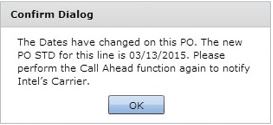
|
Important: After clicking Determine Ship Method, you have to process the shipment completely before cancelling.
| Step | Action |
| 1 |
Go to PO#, insert the valid Purchase Order number and click Get Data.
|
| 2 |
Go to Deliveries, select the processed delivery.
|
| 3 |
Click Cancel Shipment.

|
| 4 |
On the prompted window, click Yes to confirm the cancellation.
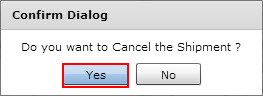
Note: All the cancelled shipment quantities are remain as open quantities. |
| Step | Action |
| 1 |
Go to PO#, insert the valid Purchase Order number and click Get Data.
|
| 2 |
Select the Shipping Conditions from the drop down list.
|
| 3 |
Go to Deliveries, select the xDoc from the drop down list.
|
| 4a |
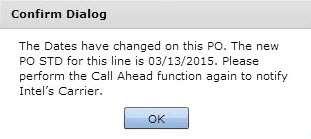
Below is the pop-up you will see if Intel buyer has made a change to the STD. Please select new Ship Date and follow Step #10 of Capital Shipment page to complete the shipment.
|
| 4b |
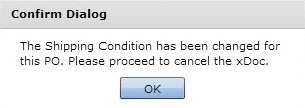
Below is the pop-up you will see if Intel buyer has made a change to the shipping condition. Please follow Step #10 of Capital Shipment page to complete the shipment.
|
| 4c |
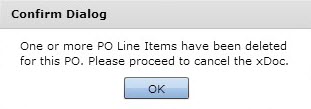
Below is the pop-up you will see if Intel buyer has made a change to the line item. Please unpack and pack again if necessary and follow Step #10 of Capital Shipment page to complete the shipment.
|